LearnApps and devices
Cross stitch on iPad: a complete setup guide
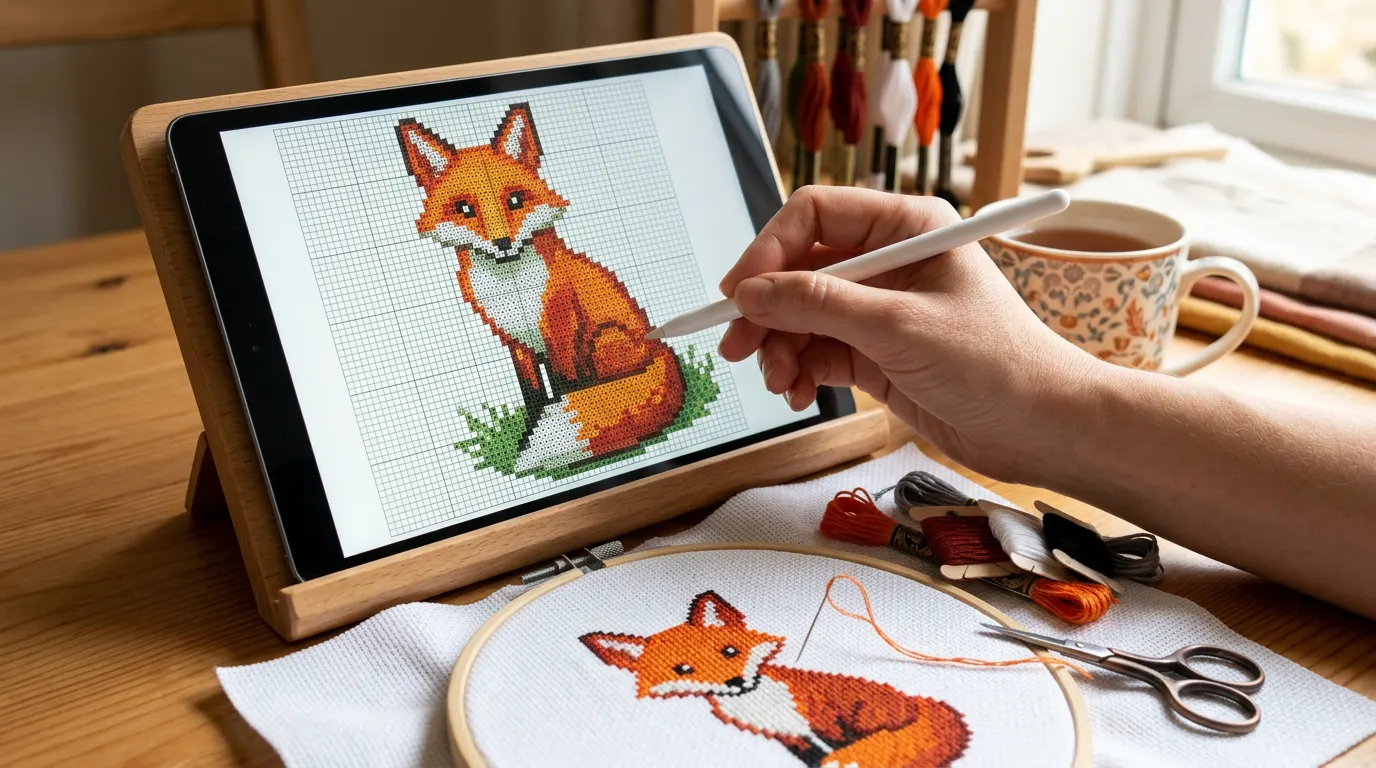
To cross stitch from an iPad, save your PDF pattern to the Files app, open it in a pattern tracker such as Crosstela (free), and mark stitches with a finger or Apple Pencil as you go. Turn on Only Draw with Apple Pencil so the Pencil marks and your fingers move the chart, and stand the iPad beside your hoop.
On this page
On an iPad your chart is big enough to read the symbols, the tablet is light enough to prop beside your hoop, and you mark finished stitches without a highlighter. Here is the whole setup, from the PDF you bought to your first marked row.
What you need
- An iPad with iPadOS 18 or later, for Crosstela. Any size works; a larger screen shows more of the chart at once.
- Your pattern: a PDF from the designer, or a file from a design program such as
.oxs,.xsdor.pat. - A pattern tracker app. This guide uses Crosstela, which is free. For others, see the best cross-stitch apps.
- Optional: an Apple Pencil, and a stand that holds the iPad upright next to you.
1. Put the pattern in Files
Most patterns arrive as a download link or an email attachment.
- Tap the download or the attachment, then tap Share and choose Save to Files.
- Pick iCloud Drive if you want the file on your other devices too, or On My iPad.
- Make a folder for your patterns, so you can find a chart again in a year.
Many shops send a .zip that holds the PDF and sometimes other files. You do not need to unzip it first: Crosstela opens zip and RAR archives and asks which pattern to open if there are several.
2. Open it in the app
There are three ways:
- From Files: in Crosstela, on the shelf, tap +, then Choose a file…, and tap your pattern.
- From Mail, Safari or Files: open the file, tap Share, and choose Crosstela. A pattern sent by AirDrop from your Mac or iPhone opens the same way.
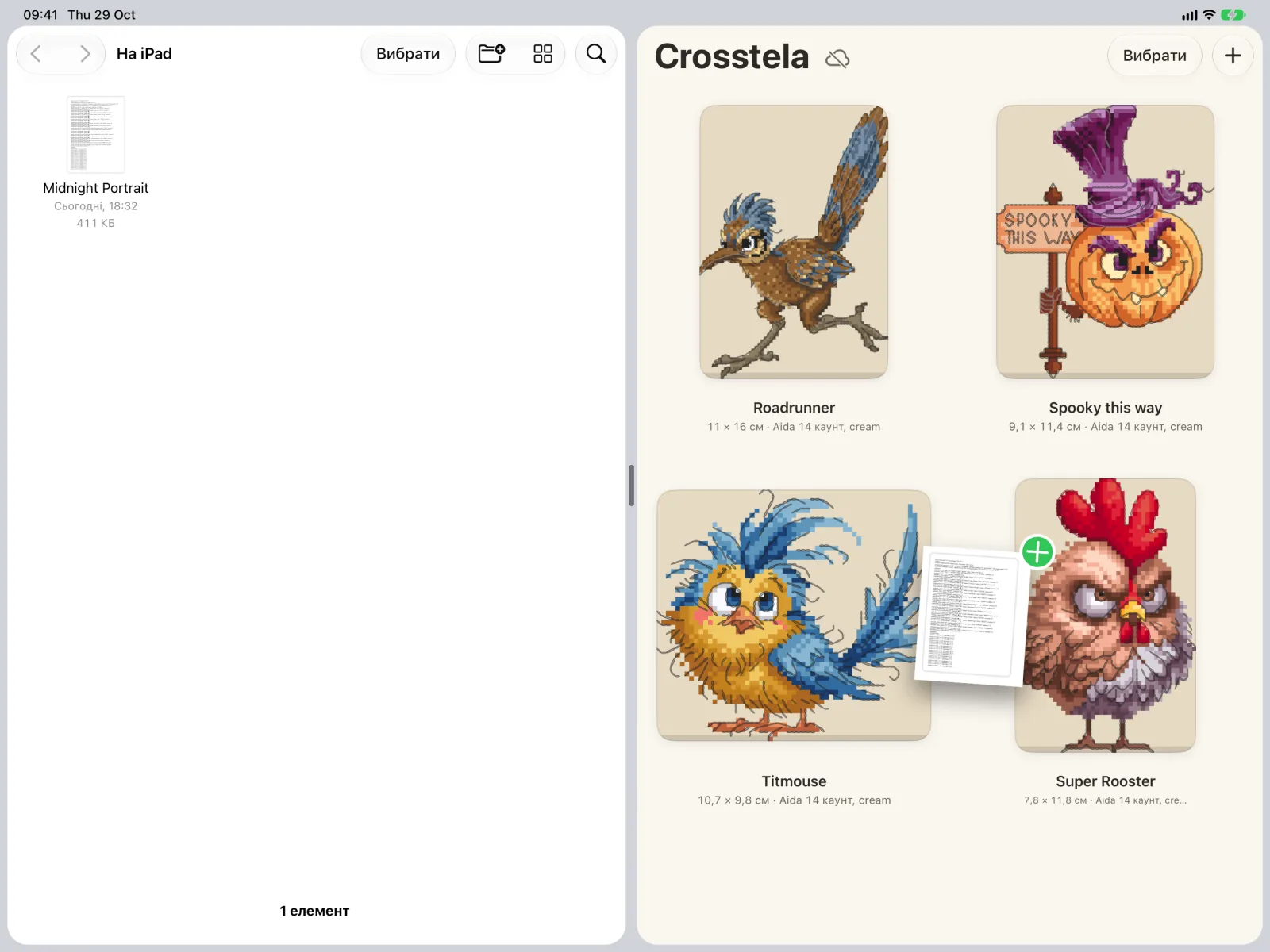
- By dragging: put Files and Crosstela side by side on the screen and drag the file onto the shelf. You can drag several at once.
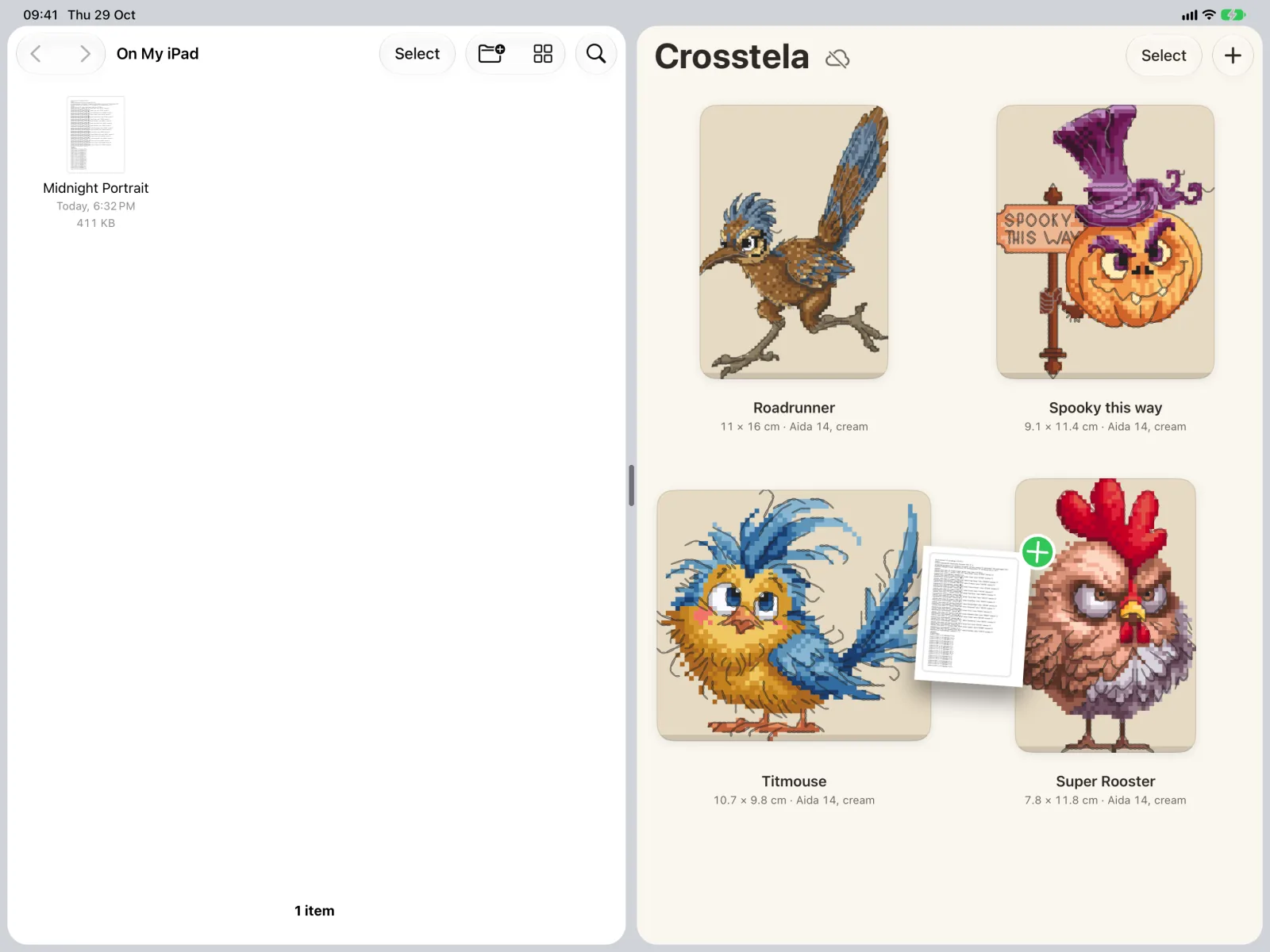
A card shows Importing while the pattern is read. Crosstela keeps its own copy, so the file in Files stays untouched.
If a file doesn’t open, the card says why. A scan or a photo of a paper chart is not read; a locked PDF asks for the password the designer sent you. See When a file doesn’t open.
3. Get to know the chart screen
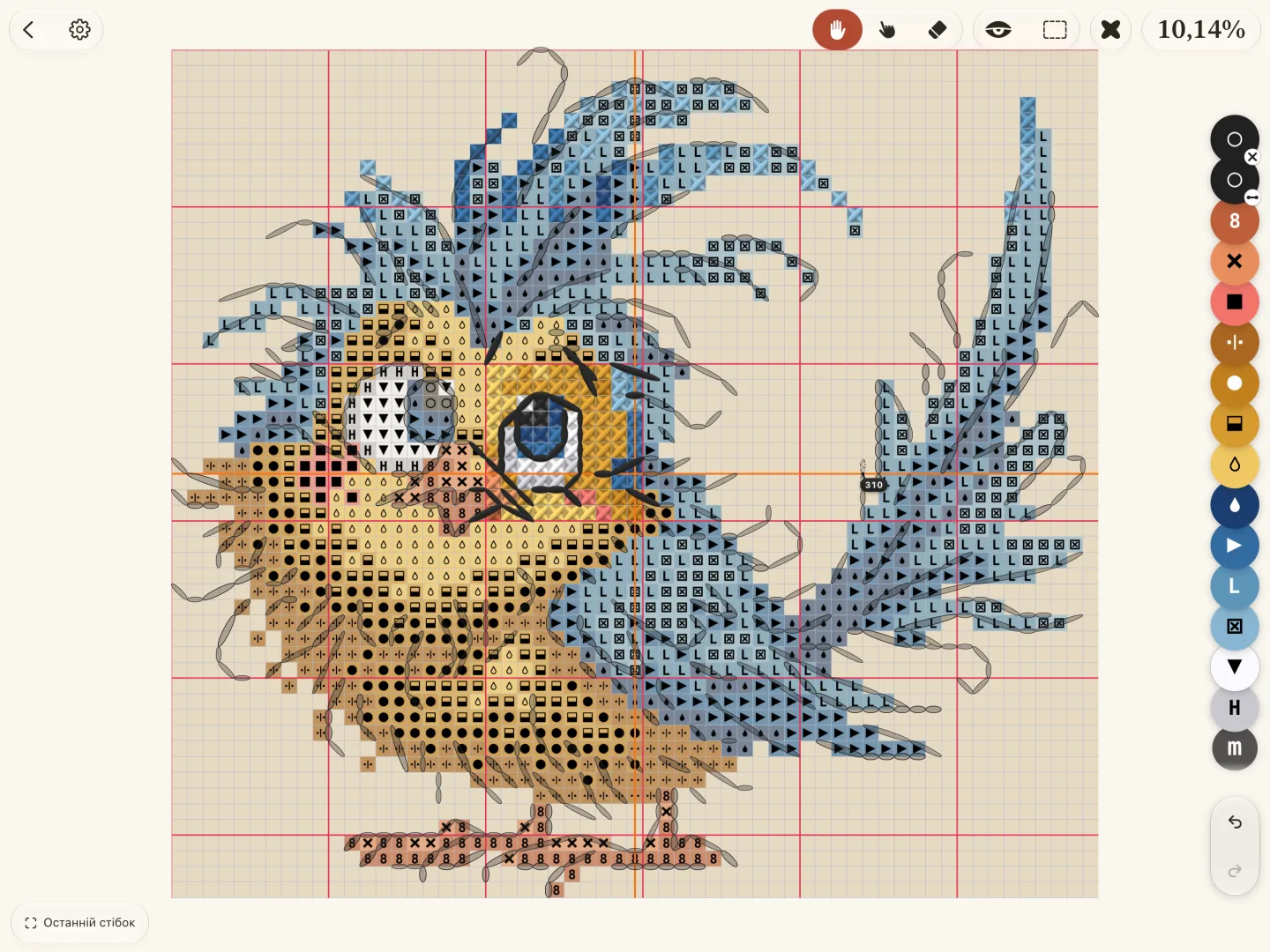
The chart fills the middle; the tools sit around the edges so the pattern stays in view. Spread two fingers to zoom in until the symbols are easy to read.
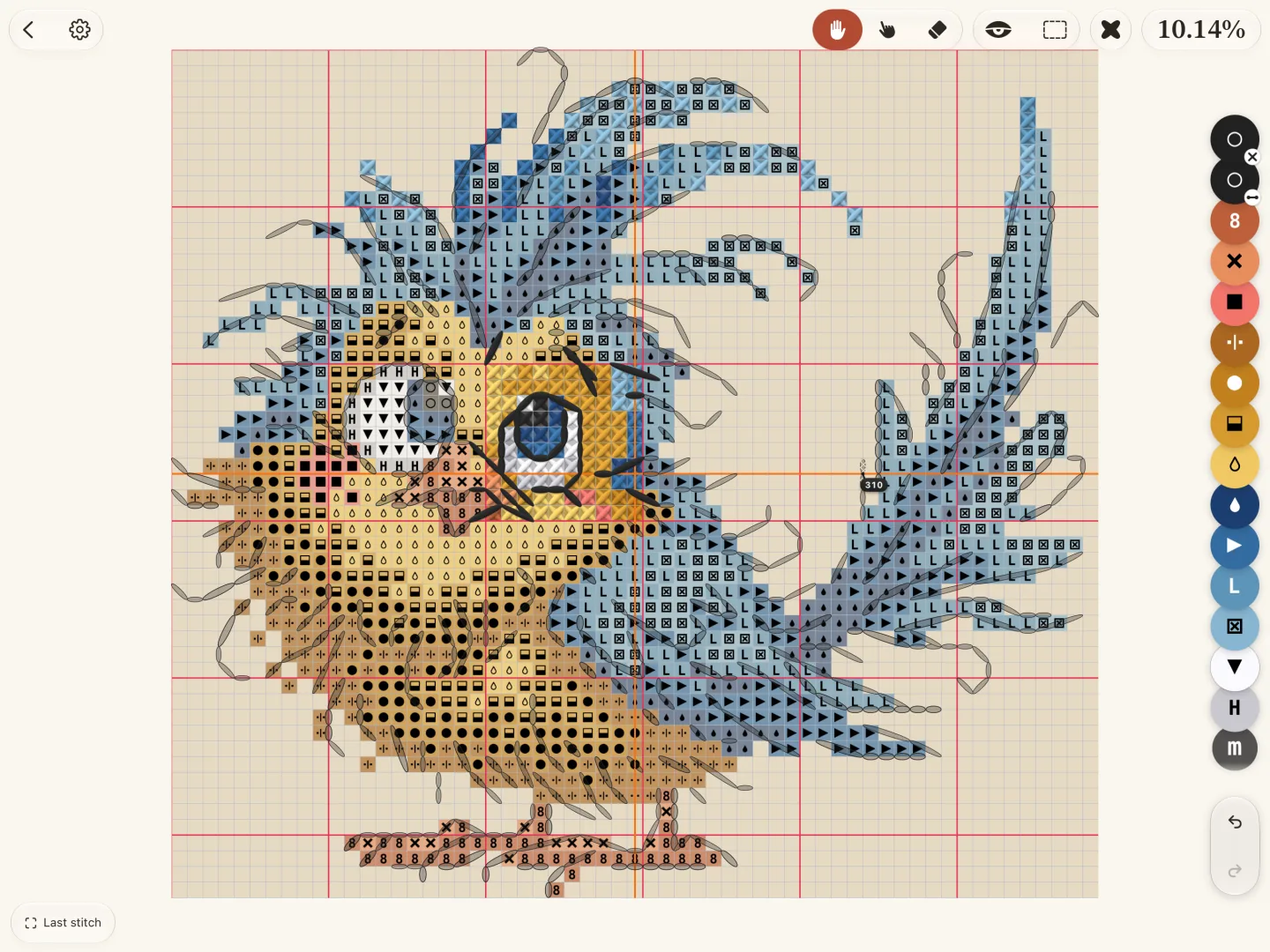
The iPad can turn either way: portrait shows more rows of a tall chart, landscape more columns of a wide one.
4. Set up Apple Pencil
With a Pencil, it pays to let the Pencil mark and your fingers move the chart, so a resting hand never marks a square by mistake.
- Open the iPad’s Settings › Apple Pencil.
- Turn on Only Draw with Apple Pencil.
- In Crosstela, choose Mark. A tap or a stroke of the Pencil marks squares; your fingers pan and zoom.
A double-tap or a squeeze of the Pencil does what you chose in the same Settings page: if it switches to the eraser, it switches between Mark and the eraser; if it switches to the previous tool, it goes back to Look. With no Pencil, a finger marks just as well. See Stitch with Apple Pencil.
5. Mark as you stitch
- Tap Mark, then tap each square you have stitched, or stroke along a row.
- Each square waits in a lime frame. Tap 👍 to turn them into sewn crosses, or ✕ to let them go.
- Made a mistake? Tap with two fingers to undo, with three to redo.
The 👍 step means a stray touch never counts as stitched. To see how far you have got, tap the percentage at the top. See Mark stitches.
6. Find your place every evening
- One colour at a time: tap a colour on the rail and the others fade; a capsule shows how many of its stitches are left.
- Work area: frame the part you are stitching, and everything outside darkens.
- Last stitch: one button takes you back to the last square you marked.
- Parking: mark the hole where a thread waits, and find every parked thread again later.
More on each in Keep your place in a cross-stitch chart and The parking method.
7. Set up the iPad at your chair
- Stand it up. A stand or a case that props the iPad at an angle keeps both hands free and the screen at eye level.
- The screen stays on. While a chart is open, Crosstela keeps the iPad from going to sleep. If you want it to sleep as usual, turn off Keep screen awake under Tools › Screen in the Pattern panel.
- Trust the number, not the screen colour. Night Shift, True Tone and screen brightness all change how a colour looks. Match floss by its number in the key.
- Light the hoop, not the iPad. A daylight lamp on your stitching shows the true shades; the iPad lights itself.
8. Carry on on iPhone and Mac
Your patterns and your marks go through your own iCloud. Sign in to the same Apple Account on your iPhone or on a Mac with Apple silicon, open Crosstela, and the chart is there with today’s rows marked. Nothing to switch on. See Continue on another device.
Your next step
Open the pattern you are stitching now. If you have none yet, take the free Strawberries chart: 1,401 stitches in 8 colours. Tap Mark, stitch ten squares and mark them. If you are not sure an iPad suits you, paper chart or app says who should stay on paper.
Questions people ask
Can I use Apple Pencil to mark a cross-stitch pattern?
Yes. In Crosstela, a tap or a stroke of the Pencil marks squares. Turn on Only Draw with Apple Pencil in the iPad’s Settings so your fingers move the chart and never mark by accident.
Do I need an Apple Pencil to cross stitch from an iPad?
No. A finger marks the same squares; the 👍 step means a stray tap never counts. A Pencil is handier for small squares and long rows.
How do I get a PDF pattern onto my iPad?
Save it from the email or the download to the Files app, then open it from the tracker app, or share it to the app directly. A zip from a shop can go in as it is.
Which iPad do I need for Crosstela?
Any iPad that runs iPadOS 18 or later. A larger screen shows more of the chart at once, but every size works.
Can I see the same pattern on my iPhone?
Yes. With the same Apple Account, your patterns and marks go through iCloud to your iPhone and to a Mac with Apple silicon.