Crosstela LearnНавчання Get the appЗавантажити застосунок

LearnFollow your chart

Track your cross-stitch PDF pattern on iPhone, iPad and Mac

Crosstela is a free cross-stitch pattern tracker for iPhone, iPad and Mac: open the PDF chart your designer sent and tap or drag over the squares you have stitched to mark them. It reads PDFs saved by design programs (not scans), shows one colour at a time, finds your last stitch and keeps your marks in sync through your own iCloud.
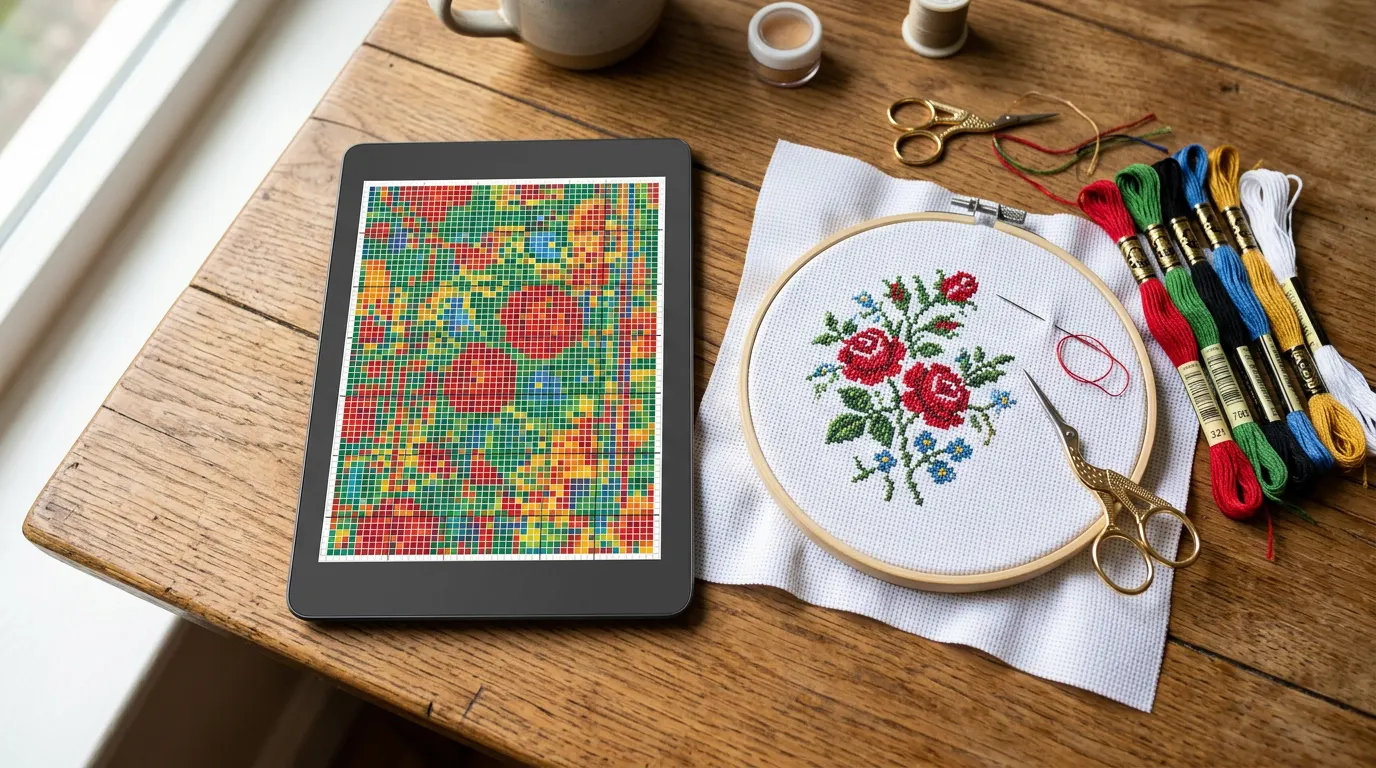
A tablet showing a colourful floral cross-stitch chart beside a hoop with red roses stitched on white Aida, skeins of floss and gold stork scissors.
On this page
  1. What a pattern tracker does
  2. Which PDFs work
  3. Open your PDF
  4. Mark what you stitch
  5. Stitch one colour at a time
  6. Pick up where you left off
  7. Progress on every device
  8. Other files it opens
  9. Free, with nothing to buy
  10. Questions people ask
(1) A tap marks the square you have just stitched. (2) The chart keeps it, so you always know where you are.

What a pattern tracker does

A printed chart works, but it asks a lot of you. You print the pages, tape them together and colour over every square you stitch with a highlighter. The highlighter hides the symbol underneath, a wrong stroke cannot be taken back, and once a page is mostly yellow it is hard to see which squares are left.

A pattern tracker keeps the chart on a screen and keeps the record for you.

On paperIn a tracker app
Highlighter over the symbolThe symbol gives way to a sewn cross in the thread’s colour
A mistake stays on the pageErase the mark, or undo with a two-finger tap
Hunting for one colour among fortyTap the colour; the rest of the chart steps back
“Where was I?”One button flies back to your last stitch
Counting what is left by handDone and left, counted for you
The chart lives in one folderThe same chart and marks on your phone and tablet

Paper still has its place, and some stitchers keep a printout in the project bag anyway. A tracker simply takes the bookkeeping off your hands. For the longer version, including who should stay on paper, see paper chart or app.

Which PDFs work

Most patterns sold online are PDFs saved straight from a design program. Those are the ones a tracker can read: the symbols, the grid and the symbol key are real text and lines inside the file, so Crosstela can tell which thread belongs to each square.

A scan or a photo of a paper chart is different. It is a picture of symbols, not the symbols themselves, and Crosstela does not read it. Open one and the card says This looks like a scan or a photo of a chart, with a Send it to us button.

How to tell before you open a file:

  • Zoom far into the PDF. If symbols and lines stay crisp, a program most likely made it; if they break into blurry blocks, it is a scan.
  • Try to select a thread number in the key. If it selects as text, that is a good sign.
  • A chart from an old magazine or a kit leaflet is usually a scan.

Some shops lock their PDFs; Crosstela then asks for the password the designer sent you. A PDF can run to 400 pages. If the shop also offers the design program’s own file, such as .oxs, .xsd or .pat, take it too: it carries the exact threads and stitches. More in When a file doesn’t open.

Open your PDF

  1. On the shelf, tap +, then Choose a file…, and pick the PDF in Files. Or, in Mail, Messages or a browser, tap Share and choose Crosstela.
  2. A card shows Importing while the chart is read. When it is done, the pattern opens.
  3. Crosstela keeps its own copy. Your original PDF stays where it was.

AirDrop and drag and drop on iPad are in Bring in a pattern file.

Mark what you stitch

  1. Tap Mark. A tap marks one square, and one finger dragged across squares marks every square it crosses, which suits a run of one colour along a row.
  2. The squares wait in a lime frame. Tap 👍 to mark them, or ✕ to drop them, so a stray touch never counts.
  3. Made a mistake? A two-finger tap undoes, a three-finger tap redoes, and the eraser takes a mark off.

On iPad with Apple Pencil, turn on Only Draw with Apple Pencil in the iPad’s Settings: the Pencil marks and your fingers move the chart. Half and quarter stitches, backstitch, French knots and beads are marked and counted too.

Details: Mark stitches, Confirm marks with 👍, Stitch with Apple Pencil, Half stitches, knots and beads.

Stitch one colour at a time

Tap a colour on the colour rail at the side of the chart. Its stitches keep their colour, every other colour fades towards the cloth, and a capsule shows how many of its stitches are left. Tap ▶ to fly from one patch of that colour to the next. Tap the colour again to see the whole chart.

(1) Tap a colour on the rail. (2) The other colours step back. (3) Tap it again to see them all.

On iPhone the colour row is off at first: open the Palette and tap its pin. See Stitch one colour at a time.

Pick up where you left off

A chart opens where you left it. If you have wandered off, tap Last stitch and the chart flies back to the stitches you marked last.

To hold your row, Crosstela has rulers along the edges, a reading strip that covers the rows past yours, and a work area that darkens everything outside the part you are stitching. Keep your place compares these with the paper methods. If you stitch with the parking method, you can park a thread in its hole; see The parking method.

Progress on every device

Tap the percentage at the top of the chart to see how many stitches are done out of how many, what you stitched today, your pace and a forecast of when you might finish. Started the piece before you had the app? I’ve stitched some of this before lets you mark the earlier work so it counts. See See your progress.

Sign in to the same Apple Account with iCloud on, on your iPhone and your iPad, and your patterns and marks arrive on each one by themselves. Every mark is saved on the device first, so Crosstela keeps working without internet. See Continue on another device.

Other files it opens

PDF is not the only way in. Crosstela also opens .oxs, Pattern Maker .xsd, PC Stitch .pat, WinStitch and MacStitch .chart, Cross Stitch Saga .saga (with its progress, when Saga put it in the export), Cross Stitch Paradise .dize, Cross Stitch Professional .xsp, FlossCross .fcjson, clean chart pictures, and zip or RAR archives holding any of these.

Coming from another app? See Open your files from Saga, Markup R-XP, Pattern Maker and more. The full list is in Files Crosstela opens. To make a new pattern from a photo of your own, see Photo to pattern.

Free, with nothing to buy

Crosstela is free. There are no purchases, no subscription, no ads and no account to create. It runs on iPhone and iPad with iOS 18 or later, and on Macs with Apple silicon as the iPad app from the App Store. Your patterns and marks stay on your device and in your own iCloud.

Questions people ask

Can I mark stitches on a PDF pattern on my iPad?

Yes. Open the PDF in Crosstela, tap Mark, and tap or drag over the squares you have stitched, then tap 👍 to confirm. With Apple Pencil, the Pencil can mark while your fingers move the chart.

Does Crosstela read a scanned pattern?

No. Crosstela reads PDFs saved by a design program, with real symbols and a symbol key. A scan or photo of a paper chart is refused with a short explanation, and you can send the file to us.

Is Crosstela free?

Yes. There are no in-app purchases, no subscription and no ads, and you do not need an account.

Does it work on a Mac?

Yes, on Macs with Apple silicon. The iPad app installs from the App Store and syncs with your iPhone and iPad through iCloud.

Will my progress move to my other devices?

Yes, through your own iCloud. Sign in to the same Apple Account on each device; there is nothing to switch on inside the app.

НавчанняВишивайте за схемою

Програма для вишивки на айпад і айфон: позначайте хрестики прямо в PDF-схемі

Crosstela — безкоштовна програма для вишивки хрестиком на iPhone, iPad і Mac: відкрийте PDF-схему від автора й торкайтеся вишитих клітинок або проводьте по них пальцем, щоб позначити. Вона читає PDF, збережені програмами для схем (не скани), показує один колір за раз, повертає до останнього стібка й синхронізує позначки через ваш власний iCloud.

Планшет із кольоровою схемою квітів поруч із п'яльцями, де на білій канві вишито червоні троянди, мулине й ножиці-лелека.
На цій сторінці
  1. Що робить трекер для схеми
  2. Які PDF підходять
  3. Відкрийте PDF
  4. Позначайте вишите
  5. Вишивайте один колір за раз
  6. Продовжуйте з того самого місця
  7. Прогрес на всіх пристроях
  8. Які ще файли відкриваються
  9. Безкоштовно, нічого не треба купувати
  10. Часті питання
(1) Дотик позначає клітинку, яку ви щойно вишили. (2) Схема це пам’ятає, тож ви завжди знаєте, де зупинилися.

Що робить трекер для схеми

Друкована схема — річ знайома: роздрукувати аркуші, склеїти скотчем і замальовувати маркером кожен вишитий хрестик. Маркер ховає символ, помилкову риску вже не зітреш, а коли сторінка майже вся жовта, важко побачити, що ще лишилося.

Програма-трекер тримає схему на екрані й сама веде облік.

На паперіУ програмі
Маркер поверх символуЗамість символу — вишитий хрестик кольору нитки
Помилка лишається на аркушіПозначку можна стерти або скасувати дотиком двох пальців
Шукати один колір серед сорокаТоркніться кольору — решта схеми відступить
«Де я зупинилася?»Одна кнопка повертає до останнього стібка
Рахувати залишок уручнуСкільки вишито й скільки лишилося — вже пораховано
Схема лежить в одній теціТа сама схема й позначки на телефоні й планшеті

Папір нікуди не зникає, і дехто все одно тримає роздруківку в торбинці з п’яльцями. Програма просто бере на себе весь рахунок. Докладніше, зокрема про те, кому краще лишитися на папері, у статті схема на папері чи в застосунку.

Які PDF підходять

Більшість схем, які продають в інтернеті, — це PDF, збережені прямо з програми для створення схем. Саме такі й читає трекер: символи, сітка й ключ у файлі — справжній текст і лінії, тож Crosstela знає, яке мулине в кожній клітинці.

Скан або фото паперової схеми — інша справа. Це картинка із символами, а не самі символи, і Crosstela її не читає. Якщо відкрити такий файл, на картці буде Схоже, це скан або фото схеми і кнопка Надіслати нам.

Як розпізнати заздалегідь:

  • Збільште PDF якнайсильніше. Якщо символи й лінії лишаються чіткими, файл, найімовірніше, з програми; якщо розпливаються квадратиками — це скан.
  • Спробуйте виділити номер мулине в ключі. Виділяється як текст — добрий знак.
  • Схема зі старого журналу чи з інструкції до набору — здебільшого скан.

Деякі магазини захищають PDF паролем; тоді Crosstela попросить пароль, який вам надіслав автор схеми. PDF може мати до 400 сторінок. Якщо магазин пропонує ще й файл самої програми, наприклад .oxs, .xsd або .pat, беріть і його: у ньому точні нитки й стібки. Докладніше — у статті Коли файл не відкривається.

Відкрийте PDF

  1. На полиці торкніться +, потім Вибрати файл… і виберіть PDF у Файлах. Або в Пошті, Повідомленнях чи браузері торкніться «Поділитися» й виберіть Crosstela.
  2. Поки схема читається, видно картку Імпорт. Щойно все готово, схема відкриється.
  3. Crosstela зберігає власну копію. Ваш PDF лишається там, де був.

Про AirDrop і перетягування на iPad — у статті Додайте файл схеми.

Позначайте вишите

  1. Торкніться Позначити. Дотик позначає одну клітинку, а палець, проведений по клітинках, — усі клітинки на своєму шляху, що зручно для ряду одного кольору.
  2. Клітинки чекають у салатовій рамці. 👍 зараховує їх, ✕ скидає, тож випадковий дотик не зарахується.
  3. Помилилися? Дотик двома пальцями скасовує, трьома — повторює, а гумка знімає позначку.

На iPad з Apple Pencil увімкніть у Параметрах iPad Малювати лише Apple Pencil: олівець позначає, а пальцями ви рухаєте схему. Півхрестики, чвертьхрестики, бекстіч, французькі вузлики й бісер теж позначаються й рахуються.

Детальніше: Позначайте стібки, Підтверджуйте позначки 👍, Вишивайте з Apple Pencil, Половинки, вузлики й бісер.

Вишивайте один колір за раз

Торкніться кольору на шкалі збоку схеми. Його стібки зберігають колір, усі інші тьмяніють до кольору канви, а капсула внизу показує, скільки ще лишилося. ▶ перескакує від однієї ділянки цього кольору до наступної. Торкніться кольору ще раз — і знову видно всю схему.

(1) Торкніться кольору на шкалі. (2) Інші кольори відступають. (3) Торкніться ще раз, щоб побачити всі.

На iPhone ряд кольорів спочатку вимкнено: відкрийте Палітру й торкніться шпильки. Див. Вишивайте один колір за раз.

Продовжуйте з того самого місця

Схема відкривається там, де ви її залишили. А якщо ви тим часом прокрутили схему деінде, торкніться Останній стібок — і схема повернеться до стібків, позначених останніми.

Щоб не загубити ряд, є лінійки по краях, смужка для читання, що закриває рядки за вашим, і робоча ділянка: усе поза частиною, яку ви вишиваєте, темнішає. Як це порівняти з паперовими способами, розповідає стаття Як не загубити місце на схемі. Вишиваєте методом паркування? Нитку можна запаркувати в її отворі; див. Метод паркування.

Прогрес на всіх пристроях

Торкніться відсотка вгорі схеми: там видно, скільки стібків вишито з усіх, що вишито сьогодні, ваш темп і прогноз, коли ви можете закінчити. Почали роботу ще до Crosstela? Частину цього я вишила раніше дає позначити зроблене, щоб воно теж рахувалося. Див. Дивіться свій прогрес.

Увійдіть в той самий Apple Account з увімкненим iCloud на iPhone та iPad — і схеми з позначками самі з’являться на кожному пристрої. Кожна позначка спершу зберігається на пристрої, тож Crosstela працює й без інтернету. Див. Продовжуйте на іншому пристрої.

Які ще файли відкриваються

PDF — не єдиний варіант. Crosstela також відкриває .oxs, .xsd з Pattern Maker, .pat з PC Stitch, .chart з WinStitch і MacStitch, .saga з Cross Stitch Saga (разом із прогресом, якщо Saga додала його в експорт), .dize з Cross Stitch Paradise, .xsp з Cross Stitch Professional, .fcjson з FlossCross, чисті зображення схем, а також архіви zip чи RAR з будь-якими з цих файлів.

Переходите з іншої програми? Див. Як відкрити файли з Saga, Markup R-XP, Pattern Maker та інших. Повний список — у статті Файли, які відкриває Crosstela. А щоб зробити нову схему з власного фото, див. Схема з фото.

Безкоштовно, нічого не треба купувати

Crosstela безкоштовна. Жодних покупок, підписок, реклами й облікового запису. Вона працює на iPhone та iPad з iOS 18 або новішою, а на Mac з Apple silicon — як застосунок для iPad з App Store. Ваші схеми й позначки зберігаються на пристрої та у вашому власному iCloud.

Часті питання

Чи можна позначати хрестики в PDF-схемі на айпаді?

Так. Відкрийте PDF у Crosstela, торкніться «Позначити» й торкайтеся вишитих клітинок або проводьте по них, а потім підтвердьте 👍. З Apple Pencil олівець позначає, а пальцями ви рухаєте схему.

Чи читає Crosstela скановані схеми?

Ні. Crosstela читає PDF, збережені програмою для створення схем, зі справжніми символами й ключем. Скан або фото паперової схеми вона не відкриє, але пояснить чому, і файл можна надіслати нам.

Crosstela справді безкоштовна?

Так. У ній немає вбудованих покупок, підписки чи реклами, і обліковий запис не потрібен.

Чи працює вона на Mac?

Так, на Mac з Apple silicon. Застосунок для iPad установлюється з App Store і синхронізується з iPhone та iPad через iCloud.

Чи перейде мій прогрес на інші пристрої?

Так, через ваш власний iCloud. Увійдіть в той самий Apple Account на кожному пристрої; у самому застосунку нічого вмикати не треба.